
Translating text in images on your website: here’s how to do it the smart way
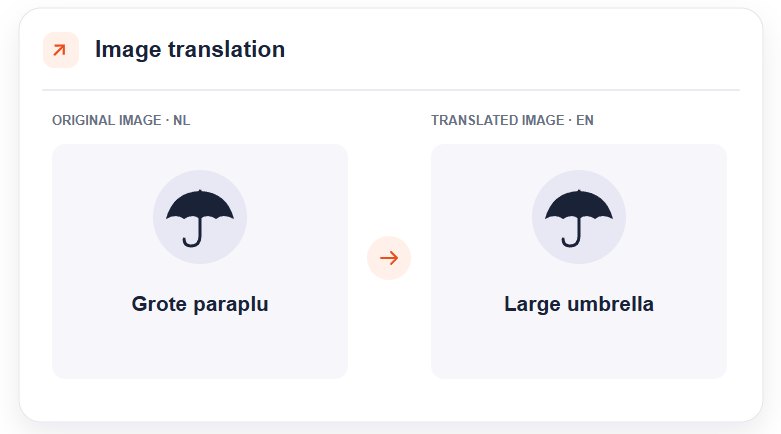
When you expand a website internationally, translating the web content is a logical first step. But have you also considered the text in images? Think of promotional banners, infographics, product packaging, or images with a call-to-action button.
If a German or French visitor lands on a fully translated online store but sees a large banner with Dutch text at the top of the page, it can undermine trust and the local appeal. It gives the impression that the foreign market is just an afterthought. Translating text in images is therefore also important for conversion.
In this article, we explain why it pays to localize visual content, how you—as an online store owner, online marketer, or web agency—can save time with Clonable , and the two ways you can translate text within an image.
Why Translating Text in Images Is Essential
Higher conversion rates and greater trust: Visitors are more likely to make a purchase when a website feels completely in their own language. Localized banners and visuals eliminate doubts and increase engagement.
Cultural relevance: Sometimes it’s not just about the language, but also about the message. A promotion centered around King’s Day works great in the Netherlands, but misses the mark in Germany. By adapting visuals, you can cater to local holidays and preferences.
Improved discoverability (multilingual SEO): Search engines look not only at body text but also at filenames and image alt text. Localized images with translated alt text can generate additional organic traffic via Google Images.
Two ways to translate text in images using Clonable
Whereas many other translation tools require you to first design a new image yourself, upload it to your own CMS, and then manually link a URL, Clonable offers two options. This way, you can choose exactly what fits your workflow.
Method 1: Automatically translate text in an image (new!)
Do you have a banner, header, or promotional image with text that you want to translate into another language without any design work? With our latest update, you can let Clonable do the work for you.
Open the Clonable Editor (via Customize > Editor) on the page where the image is located.
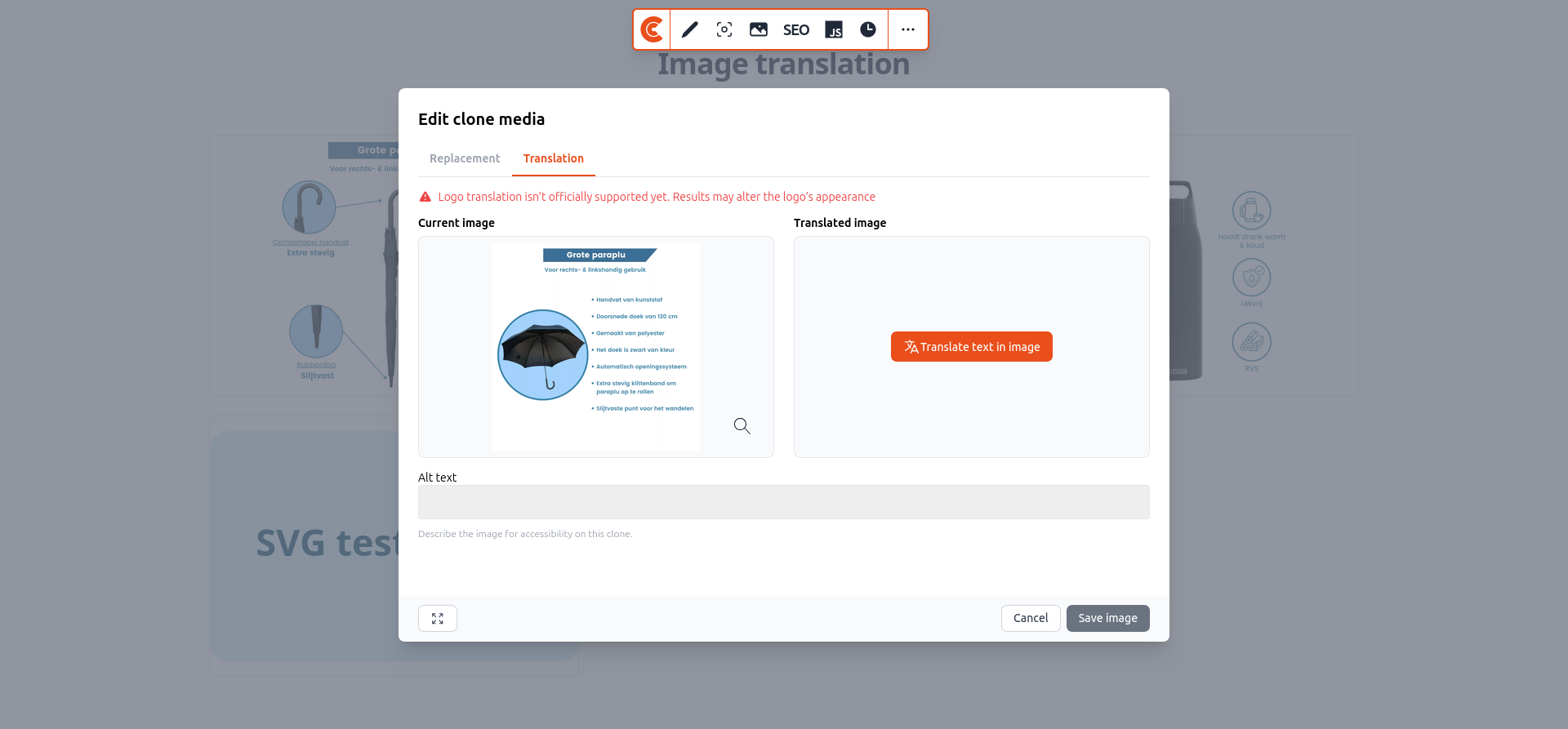
Click on the image you want to customize and open the Image Replacement feature.
Select the option to translate the text in the image.
Clonable It recognizes the text in the image, translates it into the language of your clone, and generates a new version.
No hassle with your own CMS
Clonable automatically saves the translated image via our CDN and immediately fills in the CDN link in Image Replacement. This means you don’t have to download the file yourself or re-upload it to the online store or CMS. The translated image goes live immediately on the international clone.
Please note: This feature is specifically intended for images containing text, such as banners and visuals. We do not currently offer automatic translation for company logos. The number of images you can translate depends on your Clonable subscription.
Method 2: Upload an image yourself and replace the URL
Would you rather design an image for the international market entirely on your own—for example, because you’re using a completely different photo, want to customize a logo, or have used a specific font in Photoshop? That’s still entirely possible.
Design your localized image and upload it to the CMS media library (or to your own server).
Copy the URL of this new image.
Go to the Editor at Clonable (or use the replacement rules in the dashboard) and open Image Replacement for the image in question.
Paste the URL of your own translated image into the input field and save the change.
This way, you have full creative control when you want to deliver custom work, while you can use the automatic translation feature for quick actions and standard banners.
A huge time saver for online marketers and web agencies
As an online marketing agency or web agency, do you manage the international rollout for your clients? Then you know how much time it typically takes to get a single simple promotional banner live in three different countries.
You’ll need to request the original design files (such as PSD or Canva files) from the client or designer.
You need to translate the text and reformat it.
You’ll need login credentials or help from a developer to upload the files to the client’s CMS.
Next, you’ll need to manually link all the URLs in your translation tool.
With the new image translation feature in Clonable , you can skip all those intermediate steps. As a marketer or developer, you can edit the text in the image directly from the Clonable environment, without having to ask the client for source files or add extra media files to the CMS. This way, you can quickly go live with a translated promotional banner.
3 best practices for translated images and SEO
Whether you choose the automatic translation feature at Clonable or upload an image yourself, keep these three points in mind to get the most out of your international pages.
Check the translated alt text. The alt text describes what’s in the image for people who use a screen reader and for Google. Clonable automatically translates the alt texts on your website into the target language. Does a specific local keyword match the image? If so, you can manually refine the translated alt text in Clonable .
Check the readability. A German or French translation may be longer than the original Dutch sentence. Use the live preview of the clone to ensure the translated text fits neatly within the banner’s borders.
Adjust any links behind images. If a visitor clicks on a banner to go to a landing page, make sure the link behind the image points to the translated landing page.
Ready to start translating your images?
Would you like to see, step by step, how Image Replacement and the new translation feature work in the interface? Then check out our guide in the Clonable Knowledge Base.
Don’t have a multilingual website yet, or are you an agency looking to discover how to roll out client websites—including images—to international markets?
Get started with Clonable for free today
Discover how to centrally manage international websites from a single platform.